

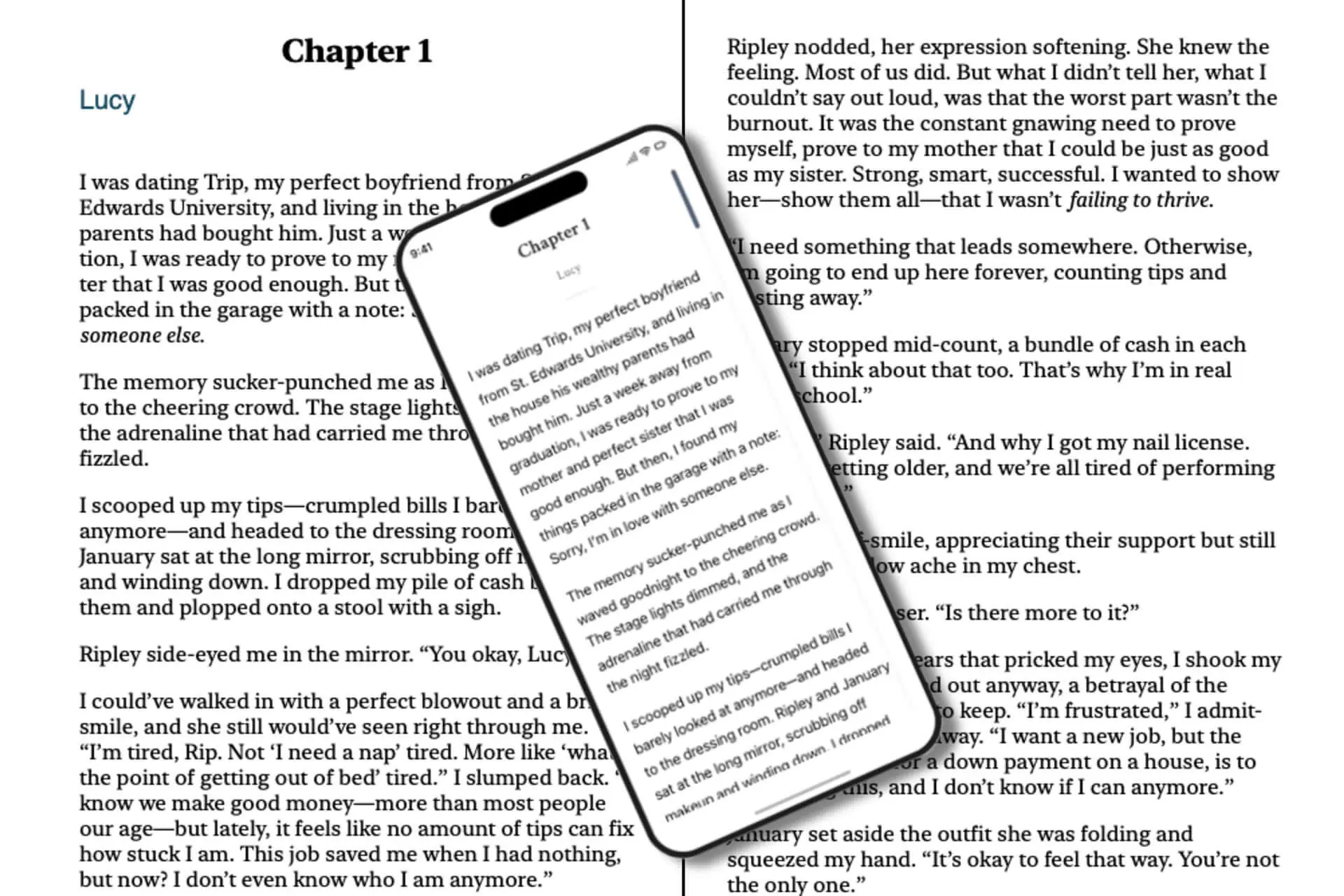
You have finished writing your book. Now you need to make it look professional on Kindle devices, smartphones, tablets, and reading apps. The good news is that you do not need expensive design software or a professional formatter to publish a straightforward ebook.
With a word processor, a little preparation, and Amazon’s free Kindle publishing tools, you can create a clean, readable ebook that is ready for Amazon Kindle Direct Publishing (KDP).
This step-by-step guide explains how to format a Kindle ebook yourself, which tools to use, what to include in your manuscript, and how to avoid common mistakes that can make a self-published book look unprofessional.
1. Choose the Right Kindle Formatting Tool
You do not need Adobe InDesign or an expensive publishing suite to format most text-based ebooks. Start with a tool that matches your experience and the complexity of your book.
Microsoft Word
Best for: Beginners who already write in Word.
- Easy chapter and paragraph formatting
- Supports DOCX files accepted by KDP
- Familiar editing and proofreading tools
- Works well for novels and standard nonfiction
Google Docs
Best for: Authors who prefer a browser-based editor.
- Convenient cloud-based editing
- Useful heading styles
- Easy collaboration and revisions
- Can export a DOCX file for further formatting
Amazon Kindle Create
Best for: Authors who want a guided formatting workflow.
- Free desktop publishing software
- Predefined themes and text styles
- Helps create chapter navigation
- Exports a KPF file for KDP
EPUB editing tools
Best for: Authors who want more control over ebook structure.
- Useful for existing EPUB manuscripts
- Can support detailed structural changes
- Requires more technical knowledge
- Needs careful validation before upload
For most first-time authors, the simplest workflow is Word or Google Docs followed by Kindle Create. Amazon supports several manuscript formats, including DOCX and EPUB, but a clean source document makes conversion easier.
Official resources: KDP ebook manuscript formatting guide and Kindle Create instructions.
2. Organize Your Book Before Formatting
Before adjusting fonts, spacing, or chapter designs, organize the manuscript into a clear structure. Good organization makes your ebook easier to navigate and reduces formatting problems during conversion.
A typical nonfiction book may include the following sections:
- Title page: The book title, subtitle if applicable, and author name.
- Copyright page: Copyright notice and any relevant publishing information.
- Dedication or acknowledgments: Optional sections for people you want to recognize.
- Table of contents: A navigable list of chapters and major sections.
- Introduction: An optional overview of the book and what readers will learn.
- Main chapters: The core content, organized into logical sections.
- Conclusion: A summary, final advice, or next steps for the reader.
- About the author: A short biography and, if appropriate, a link to your website or newsletter.
Fiction books may use a simpler structure, often starting with a title page, copyright information, and the first chapter. You do not need to add every possible front-matter section to every book.
3. Format Your Manuscript in Word or Google Docs
Use heading styles for chapter titles
Do not format every chapter title manually by changing its font size and boldness alone. Apply a consistent heading style instead. In Microsoft Word, use Heading 1 for chapter titles and appropriate lower-level headings for subsections.
In Google Docs, select each chapter title and choose a heading style from the toolbar. Consistent headings make the document easier to edit and help ebook tools identify the book’s structure.
Keep body text simple
Kindle ebooks are designed to adapt to different screens and reader preferences. Readers may change the font, text size, line spacing, or other display settings, so avoid relying on elaborate fixed formatting.
- Use a consistent body-text style.
- Use bold and italics sparingly for emphasis.
- Avoid excessive decorative fonts.
- Use paragraph indents or appropriate spacing consistently.
- Remove repeated spaces used to align text.
Do not use the Tab key to indent every paragraph
Manual tabs and repeated spaces can convert unpredictably. Use your word processor’s paragraph settings or styles to apply first-line indents when needed. Alternatively, use a consistent paragraph-spacing approach appropriate for your book.
Insert real page breaks between chapters
Use the word processor’s page-break function to separate chapters in your source document. Do not repeatedly press Enter until a chapter moves to a new page. In a reflowable ebook, the amount of text shown on a screen depends on the reader’s settings, so print-style page positioning is not reliable.
Remove print-only elements
For a standard reflowable Kindle ebook, remove page numbers, running headers, and footers from the manuscript. These elements are designed for print layouts and generally are not needed in a reflowable ebook.
4. Create a Clickable Table of Contents
A good table of contents makes it easier for readers to move between chapters, especially in longer nonfiction books, guides, and textbooks.
To prepare your manuscript:
- Apply consistent heading styles to each chapter title.
- Check that the chapters appear in the correct order.
- Import the document into Kindle Create.
- Review the detected chapter titles and correct any errors.
- Check the resulting navigation or table of contents in the preview.
Kindle Create can help build an interactive table of contents from recognized chapter titles. The precise workflow depends on the manuscript and the type of book you are preparing.
5. Use Kindle Create to Make Your Ebook Look Professional
Kindle Create is particularly useful for authors who want a polished design without learning professional publishing software. It helps apply consistent styling and lets you preview the result before uploading it to KDP.
- Download the software. Visit the official Kindle Create page and install the version for your computer.
- Start a new project. Open Kindle Create and import your prepared DOCX manuscript.
- Review chapter detection. Confirm that each chapter begins in the right place and has the correct title.
- Choose a theme. Select a theme that suits your genre and creates a consistent reading experience.
- Check front and back matter. Make sure the title page, copyright information, and author biography are formatted appropriately.
- Review images and special elements. Check image size, captions, lists, tables, and other elements that may need adjustment.
- Preview the ebook. Inspect the book on different simulated device sizes and text settings.
- Export the publishing file. Save the project and export the KPF file for upload to KDP.
Keep a backup of your original manuscript and Kindle Create project files. This makes it easier to revise the ebook later without rebuilding it from scratch.
6. Format Images, Lists, and Special Content Carefully
Images
Images can improve a cookbook, travel guide, workbook, or illustrated nonfiction title, but they should remain clear and appropriate for smaller screens.
- Use high-quality images with sufficient resolution.
- Check that text within an image remains readable on a phone.
- Keep images proportional instead of stretching them.
- Add captions where they help explain the image.
- Check image placement in the final preview.
- Make sure you have permission to use every image.
Lists and tables
Use built-in numbered and bulleted lists rather than typing symbols or numbers manually for every item. Simple lists generally adapt better to different screen sizes.
Wide tables can be difficult to read on a small phone. If a table has many columns, consider converting it into a series of short sections or lists. Test the result in the previewer.
Links and footnotes
Use descriptive link text and check that each hyperlink works. If your book contains footnotes, verify that they can be accessed easily in the final ebook. Avoid inserting raw URLs when a meaningful link label would be more useful.
7. Design a Kindle Cover Without Hiring a Designer
Your book’s cover is separate from the interior manuscript. You can create a simple cover yourself using an image editor, a design application, or Amazon’s available cover tools.
For a professional-looking cover:
- Make the title readable at thumbnail size.
- Use a clear visual hierarchy between the title, subtitle, and author name.
- Choose imagery and typography appropriate for your genre.
- Avoid excessive text and too many competing visual elements.
- Use images and fonts that you have permission to use commercially.
- Follow KDP’s current cover-file specifications.
You can explore Amazon KDP’s cover guidelines and its available publishing tools before preparing your cover file.
For a standard Kindle ebook, upload the cover separately during the book setup process. Do not assume that placing the cover image at the beginning of the manuscript is a substitute for uploading the dedicated cover file.
8. Choose the Correct File Format for KDP
Amazon accepts several ebook manuscript formats. The best choice depends on how you created the book and how much control you need over its layout.
| File format | Best use | Things to know |
|---|---|---|
| DOCX | Word-based manuscripts | Convenient for beginners; complex formatting should be checked after conversion. |
| KPF | Books prepared with Kindle Create | Designed for publishing through KDP. |
| EPUB | Authors using ebook editing or conversion tools | Must meet KDP’s technical requirements and should be validated. |
| Certain image-heavy or specialized publications | May not convert cleanly to a reflowable ebook; preview carefully. |
For most text-based books, start with DOCX or use Kindle Create to export KPF. Amazon no longer accepts MOBI for fixed-layout ebook uploads, and MOBI is not recommended for reflowable ebooks. Check the current KDP supported manuscript formats before uploading.
9. Preview Your Kindle Book Before Publishing
Even a carefully formatted manuscript can contain problems after conversion. Previewing the ebook is one of the most important steps in self-publishing.
Use the preview tools to inspect:
- Chapter breaks and heading styles
- Table of contents and navigation links
- Paragraph spacing and indentation
- Image sizing and placement
- Lists, tables, and special characters
- Hyperlinks and footnotes
- Blank sections or unexpected spacing
Review the book at multiple simulated screen sizes. A layout that looks fine on a large tablet may be difficult to read on a phone. Also check how the text behaves when font size changes.
Amazon provides information about Kindle Previewer and publishing workflows. You can also perform a final check using the preview available during KDP’s upload process.
10. Upload Your Finished Book to Amazon KDP
Once you are satisfied with the manuscript and cover, you can upload your book through KDP.
- Sign in to Amazon Kindle Direct Publishing.
- Create a new Kindle ebook or open an existing draft.
- Enter the book title, subtitle, author name, description, and other required details.
- Complete the rights, keyword, category, and publishing settings that apply to your book.
- Upload the manuscript file, such as DOCX, EPUB, or KPF.
- Upload the cover file or use an available cover creation option.
- Open the previewer and review the converted ebook.
- Correct any problems, save the changes, and review pricing and distribution settings.
- Submit the book for publication when all details are correct.
Uploading a file does not guarantee immediate publication. Amazon reviews submitted books, and you may need to correct issues if the files or listing do not meet its requirements.
Kindle Formatting Checklist
Use this interactive checklist to track your progress before publishing. Your selections update the completion percentage below.
Ready-to-Publish Checklist
Complete each task as you finish it. You can use this checklist during your final review.
Common Kindle Formatting Mistakes to Avoid
Using spaces to align text
Repeated spaces can produce inconsistent results across devices. Use paragraph settings, styles, and proper alignment controls instead.
Adding page numbers to a reflowable ebook
Page numbers change according to the reader’s font settings and screen size. Avoid treating a Kindle ebook like a fixed-page print book unless you are intentionally creating a format that preserves the page layout.
Using too many fonts and styles
Decorative typography may look impressive in a word processor but can become distracting on a small screen. Consistent headings and readable body text are usually more effective.
Uploading without checking the conversion
A DOCX file can look correct in Word but behave differently after conversion. Always inspect the final Kindle preview and fix unexpected spacing, navigation, or image problems.
Ignoring accessibility and readability
Simple structure, meaningful headings, descriptive links, and readable images help more people enjoy your book. Avoid relying on color or image placement alone to communicate important information.
Frequently Asked Questions
Can I format a Kindle book for free?
Yes. You can prepare a manuscript with free or already available word-processing tools and use Amazon’s free Kindle Create software. You can also upload supported manuscript formats directly to KDP, provided the file meets the platform’s requirements.
Do I need a professional formatter to publish on Kindle?
No. Many novels and text-heavy nonfiction books can be formatted by the author. Professional help may be worthwhile for complex layouts, technical books, image-heavy publications, or manuscripts that require specialized typography.
Is Microsoft Word good enough for Kindle formatting?
For many standard ebooks, yes. Use heading styles, consistent paragraph formatting, and proper chapter breaks. Preview the converted file because complex Word layouts may not convert as expected.
Can I use Google Docs to create a Kindle ebook?
Yes. You can write and organize your manuscript in Google Docs, download it as a DOCX file, and then import it into Kindle Create or upload it to KDP after checking the formatting.
Should I use EPUB or KPF for Amazon KDP?
Both can be suitable. KPF is useful when you prepare the book in Kindle Create, while EPUB works for authors who use compatible ebook tools. Choose the workflow that suits your manuscript and validate the result before publication.
Does Kindle ebook formatting need fixed page sizes?
Most text-based Kindle ebooks are reflowable. The text adapts to the reader’s screen and preferences, so fixed print-page layouts are generally unnecessary. Image-heavy or specialized publications may need a different workflow.
How do I make a table of contents for my Kindle book?
Use consistent heading styles for chapter titles, then use Kindle Create or another compatible publishing workflow to generate and review navigation. Check both the contents page and the reading application’s navigation menu.
Can I use the same manuscript for Kindle and paperback?
You can reuse the same edited manuscript as a starting point, but ebook and print editions often need different formatting. Kindle ebooks are generally reflowable, while paperbacks require print-specific page dimensions, margins, and layout decisions.
Do I need to include my ebook cover inside the manuscript?
For a standard Kindle ebook, upload the cover separately during KDP title setup. Follow the platform’s current instructions rather than relying on a cover image inserted into the manuscript.
Final Thoughts: Publish a Professional Kindle Book on a Budget
You do not need to hire a designer to create a well-formatted Kindle ebook. For most text-based books, the combination of a clean manuscript, consistent heading styles, proper chapter breaks, and Kindle Create can deliver a professional reading experience.
Focus on readability rather than elaborate decoration. Use simple formatting, make navigation easy, check every image and link, and preview the final conversion before submitting your book to Amazon KDP.
Start with your manuscript, work through the checklist, and make corrections before publication. With a repeatable process, you can format future books faster while keeping control of your publishing budget.
Official Resources
- Amazon KDP: Ebook Manuscript Formatting Guide
- Amazon KDP: Supported Ebook Manuscript Formats
- Amazon KDP: Prepare Your Ebook with Kindle Create
- Amazon KDP: Kindle Publishing and Previewing Options
- Amazon KDP: Kindle Publishing Guidelines
Note: Amazon’s supported file formats and publishing requirements can change. Review the current official KDP documentation before uploading your book.